Note: these pictures show the steps you'll need to follow to download and install a program. There is a link at the bottom of the page to the graphics program "IrfanView". The download steps are the same, for most programs. Since I originally wrote this page, the program version has been updated to 3.70. You may see some very slight variations between the pictures displayed here, and the actual download images.
Click on the "Download" link
Chose the:
"download the current version of IrfanView English" (see *note at bottom)
(Version 3.70, Self extracting EXE file, 800 Kb)
The "File Download" window to open.
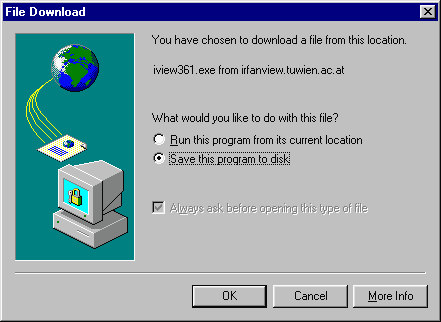
By default, the "Save this file to disk" option is selected.
Just click "OK".
This is the "Save As" Window. The file will be downloaded to whatever
folder or drive is selected in the "Save In" box.
I suggest you select the "Desktop".
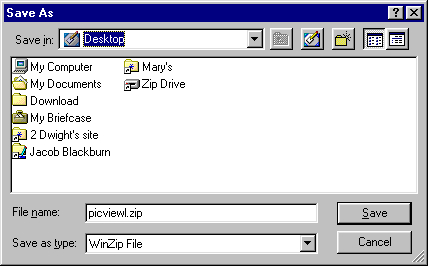
At the top, navigate to the Desktop by clicking the black inverted triangle.
Select "Desktop" and it will be set in the "Save In" window, as shown above.
Click the "Save" button when the "Save In"
folder is selected (Desktop, in this case)
(note: the file name will be "irview370.exe" and will not need to be changed).
This is the file download window. It shows the download's
progress and and estimated time left to complete.
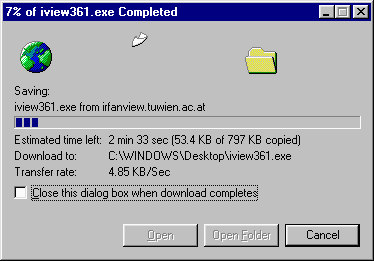
If you like, check the "Close this dialog box when download completes"
option. You'll hear a "beep" when the box closes.

The download is complete and the downloaded
program installation file is on the Desktop.
Just double click the icon to open it, and the installation begins.
(The new version is 3.70)
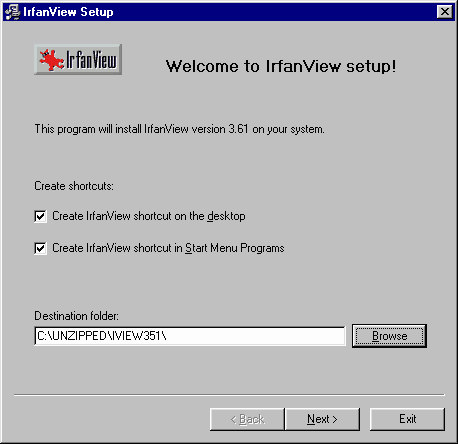
I suggest you leave the two checked items. Note the Programs Destination folder location.
Just click "Next"
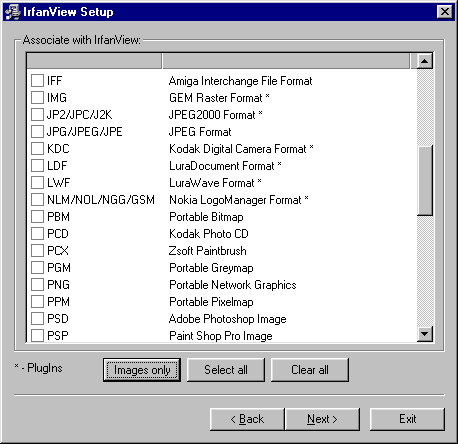
I suggest you click the "Images only" button.
Then click "Next"
Ready to begin installation.
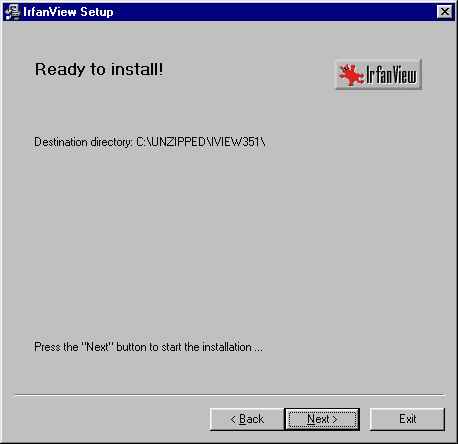
Just click "Next".
When the Installtion is complete, you will see this window.
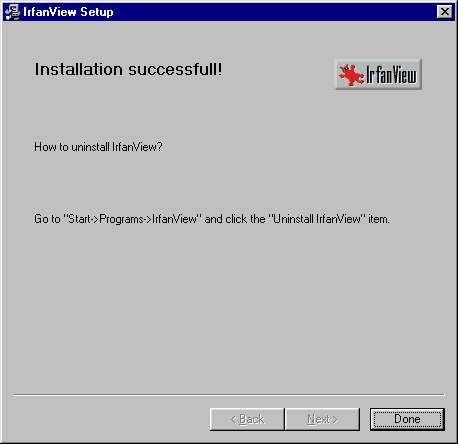
Just click the "Done" button
This will place the program shortcut on your Desktop.
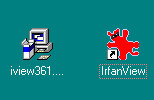
Double click the IrfanView shortcut (on the right) and the program will open.
You can select and delete the irview370.exe file now.
Since the program is now installed, you no longer need the installer program.
Hover your cursor over the buttons on the program
and it will tell you what each one does...enjoy!
Your next step is to click on the download link. Click Here
*Note: There are a variety of download site options. The "Tucows" site is an excellent choice. Just follow the steps to find the site near where you live.
Do you find this information helpful?
Let me know... Email to Dwight Blackburn